Getting Started with Intelligenic Product Studio

Set up your workspace, create your first project, and unlock AI‑powered workflows that accelerate product development.
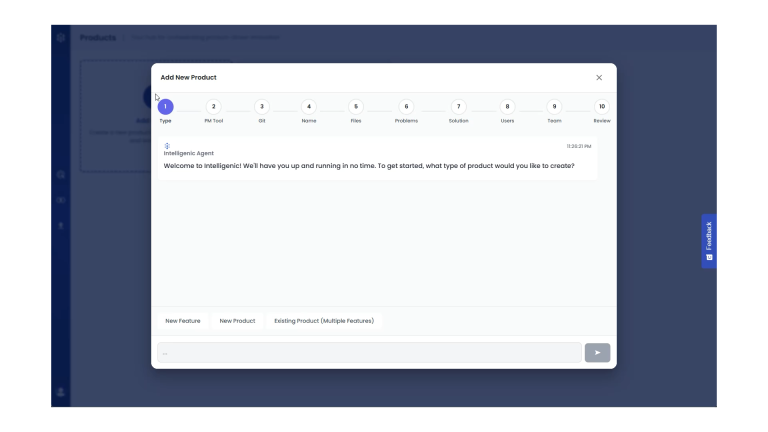
Product Studio setup wizard with step‑by‑step prompts for adding and configuring a new product.

From Idea to Product: Your First Steps in Product Studio
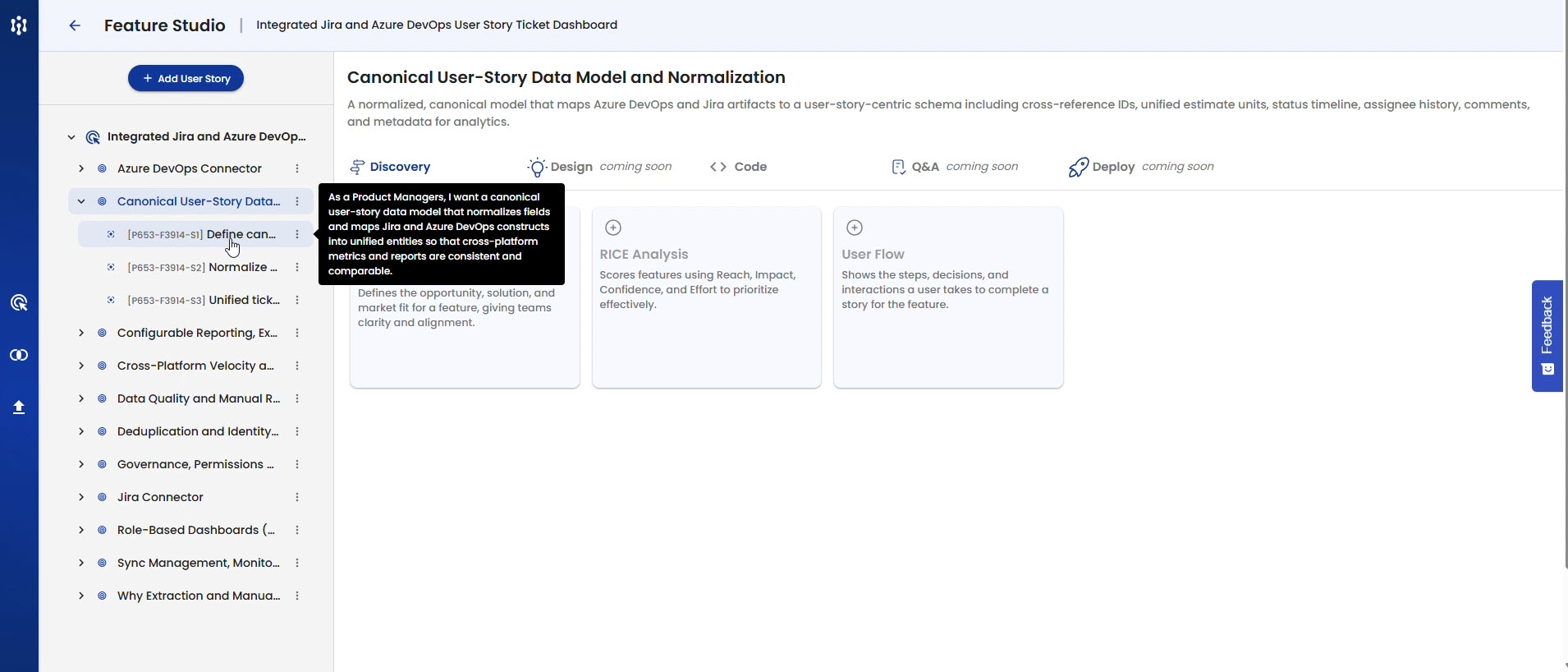
Screenshot of Intelligenic Feature Studio showing the product, feature, and user story hierarchy for Work Product creation.

Explore how Intelligenic Feature Studio structures products, features, and user stories into a governed hierarchy for Work Product creation and code generation.
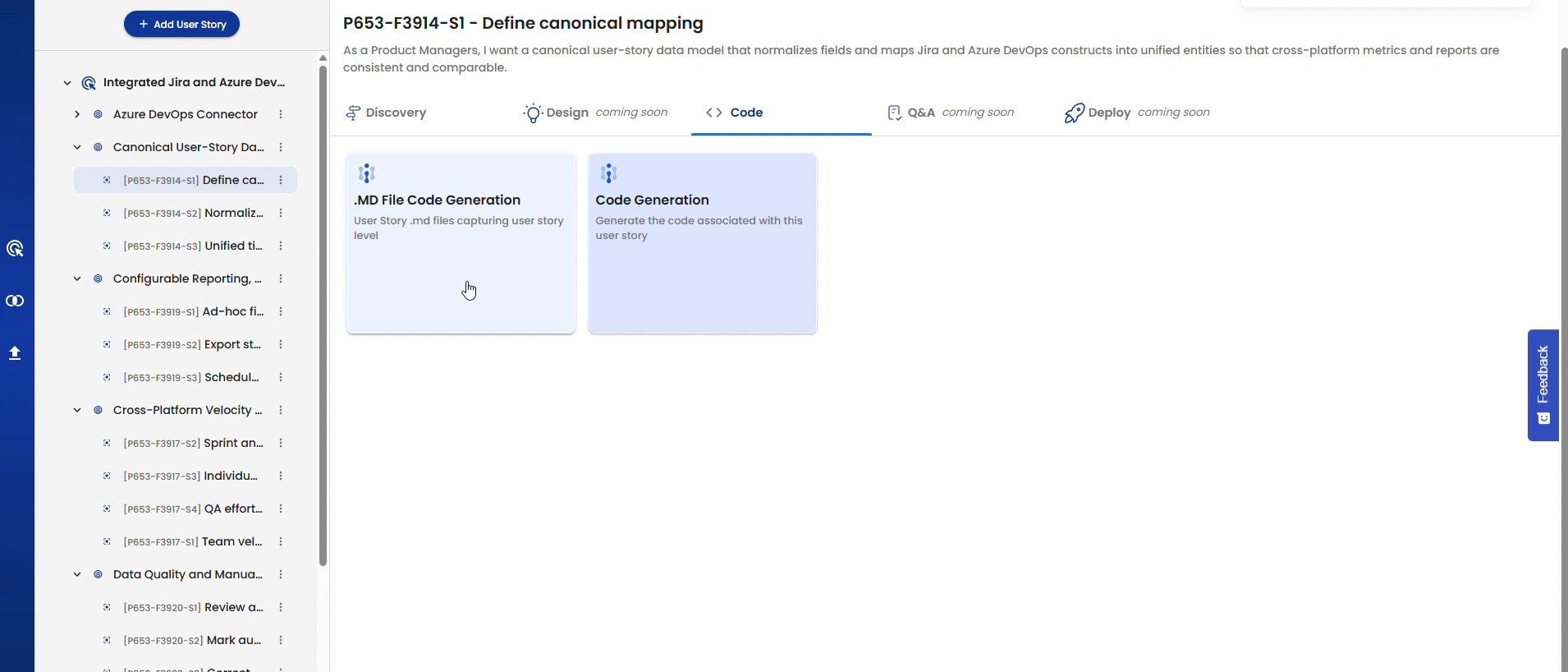
Screenshot of Intelligenic Product Studio showing MD File and Code generation options for a User Story using AI‑powered Spec Coding

Step‑by‑step guide to generating user‑story‑aligned MD Files and code using Intelligenic’s AI‑powered Product Studio.
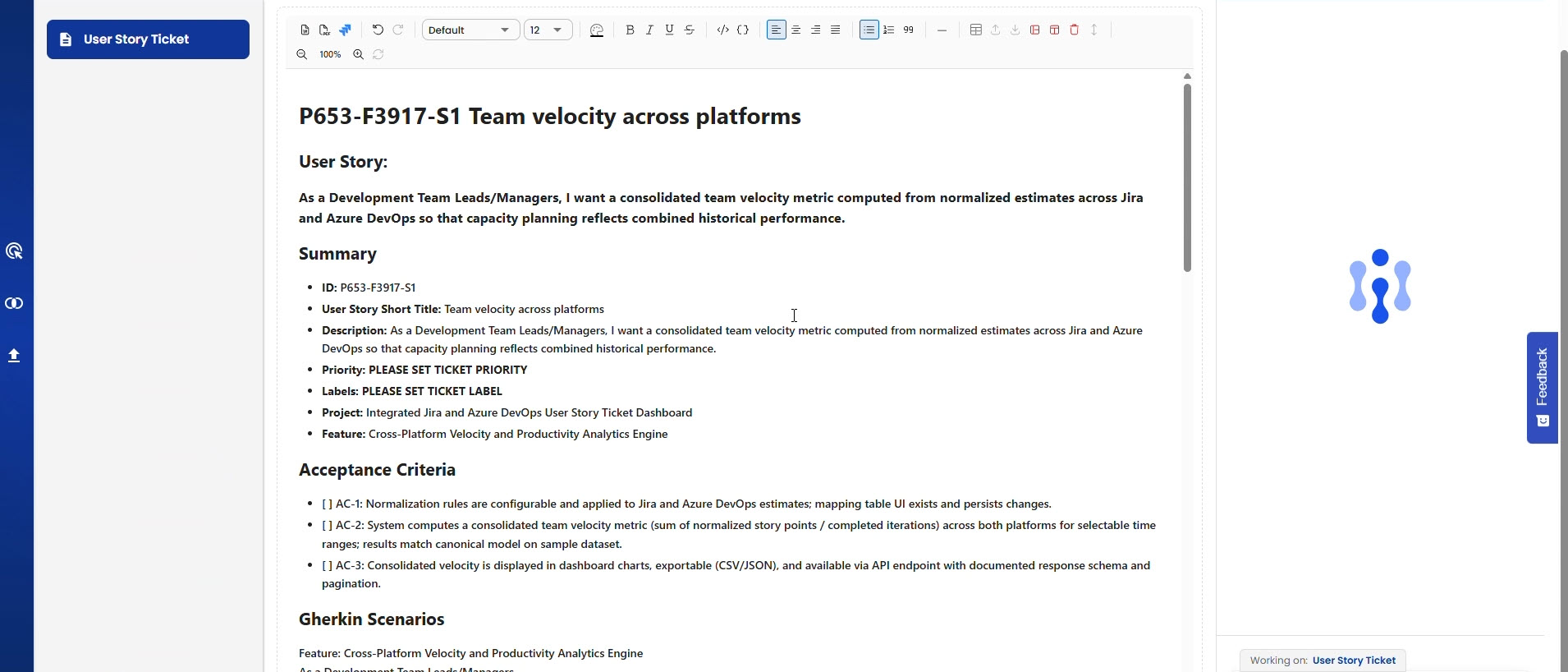
Jira DevOps Integration

Learn how to connect Intelligenic Product Studio to Jira or Azure DevOps and export User Story tickets directly into your project management system.
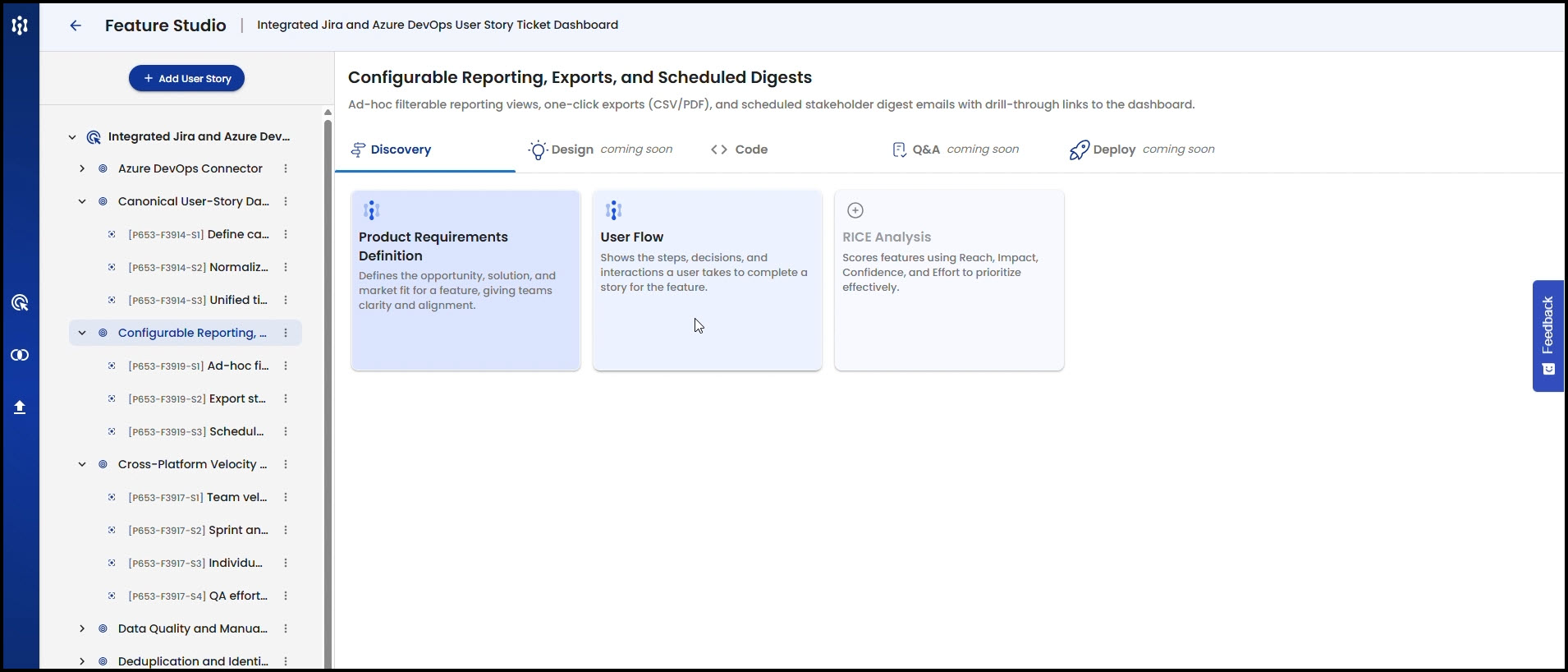
Screenshot of Intelligenic Product Studio generating a User Flow using the Context Mesh for a selected Feature or User Story.

Learn how Intelligenic Product Studio generates User Flows using the Context Mesh and how to refine them in the Work Product Editor.

Before you begin, make sure you have:

  • A modern browser (Chrome, Edge, Safari, or Firefox — latest two versions recommended).
  • Stable internet connection.
  • Optional: Access to Jira and Git repositories for integration.
  • Optional: Files such as design standards, technical architecture diagrams, or interview notes to enrich context.

Visit intelligenic.ai/plans.

  • Select the plan that fits your needs.
  • Create your account and sign in.
  • If you encounter issues, consult the troubleshooting section or contact support to resolve login problems quickly.
  • After signing in, you’ll land on the Product Hub.
  • Here you can access all the products you create.
  • Explore the demo product to practice navigation and test features safely.
  • Note: Work Products are introduced here — dynamic deliverables you’ll generate and refine throughout the SDLC.

Click Add Product to start. You can:

  • Create a New Product.
  • Add a New Feature.
  • Update an existing Product and create multiple features for it.

Follow the prompts to provide context, including:

  • Target users.
  • Problems they face.
  • Solutions you’re considering.
  • Product Name and more

Add more detail by:

  • Connecting to Jira and Git repositories.
  • Uploading files such as design standards, technical architecture diagrams, or interview notes.

Context Checklist

Context InputWhy It MattersExample
Jira Project or other product management tool projectProvides history and current project activities for your existing product, helping Product Studio determine what needs to be done next“Jira Tickets”
Git RepositoriesCode previously developed for the existing application. Helps Product Studio determine what code has been developed and what needs to be generated next.“Markdown documentation and code files broken into logical chunks (features, services, functions) so the system understands the application end-to-end.”
Target UsersGuides feature prioritization“Enterprise QA engineers”
ProblemsDefines pain points“Manual regression testing is slow.”
SolutionsShapes product vision“Automated test case generation”
  • Intelligenic analyzes your inputs and generates your Product, Features, and User Stories.
  • You’ll be taken directly to the Feature Studio.
  • Navigate across Products, Features, and User Stories.
  • Review Work Products in stages:
    • Discovery
    • Design
    • Code
    • Test (coming soon)
    • Deploy (coming soon)

Definition: Work Products are living, iterative outputs created during software development. They represent the deliverables that describe, design, build, test, or deploy a system.

Examples: Documents, diagrams, source code, test cases, project plans.

Actions:

  • Generate Work Products as needed.
  • Open them to view and edit.
  • Refine content using Intelligenic’s AI editing tools.
  • Close and move on to the next.
  • Once Work Products reflect your product vision, proceed to the Code phase.

Best Practice Tip: Validate Work Products with your team before moving to the Code module to reduce rework.

  • Move to the Code module when ready.
  • Generate markdown (MD) files and code needed to build your product.
  • Integrate outputs directly into your repositories and pipelines.
  • Use CI/CD tools (e.g., Jenkins) to automate deployment.

Compliance Reminder: Always review generated code for compliance and security before merging.

Intelligenic Product Studio helps you:

  • Sign up and set up quickly.
  • Explore demo products to learn the workspace.
  • Create your own products with rich context.
  • Generate and refine Work Products across the lifecycle.
  • Transition smoothly into code generation.

You’re now ready to start building with Intelligenic!